
This provides more flexibility than the previous Update Status action by allowing updates across multiple field types and data sources.
Where to Find It
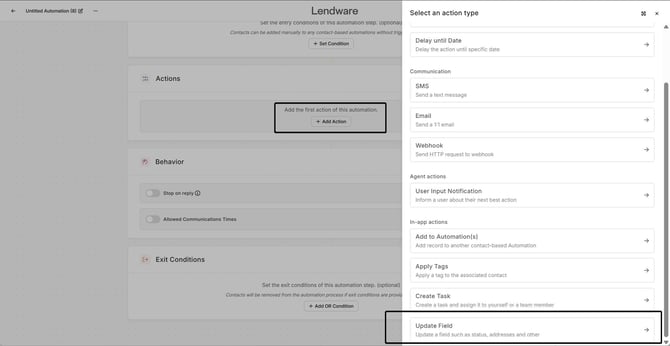
To add an Update Field action:
-
Open an automation (Contact or Transaction)
-
Click Add Action
-
Select Update Field
How It Works
Each Update Field action requires three components:
-
Target → The record being updated
-
Field → The field you want to modify
-
Value → How the value is set
Setting Up the Action
1. Select the Target
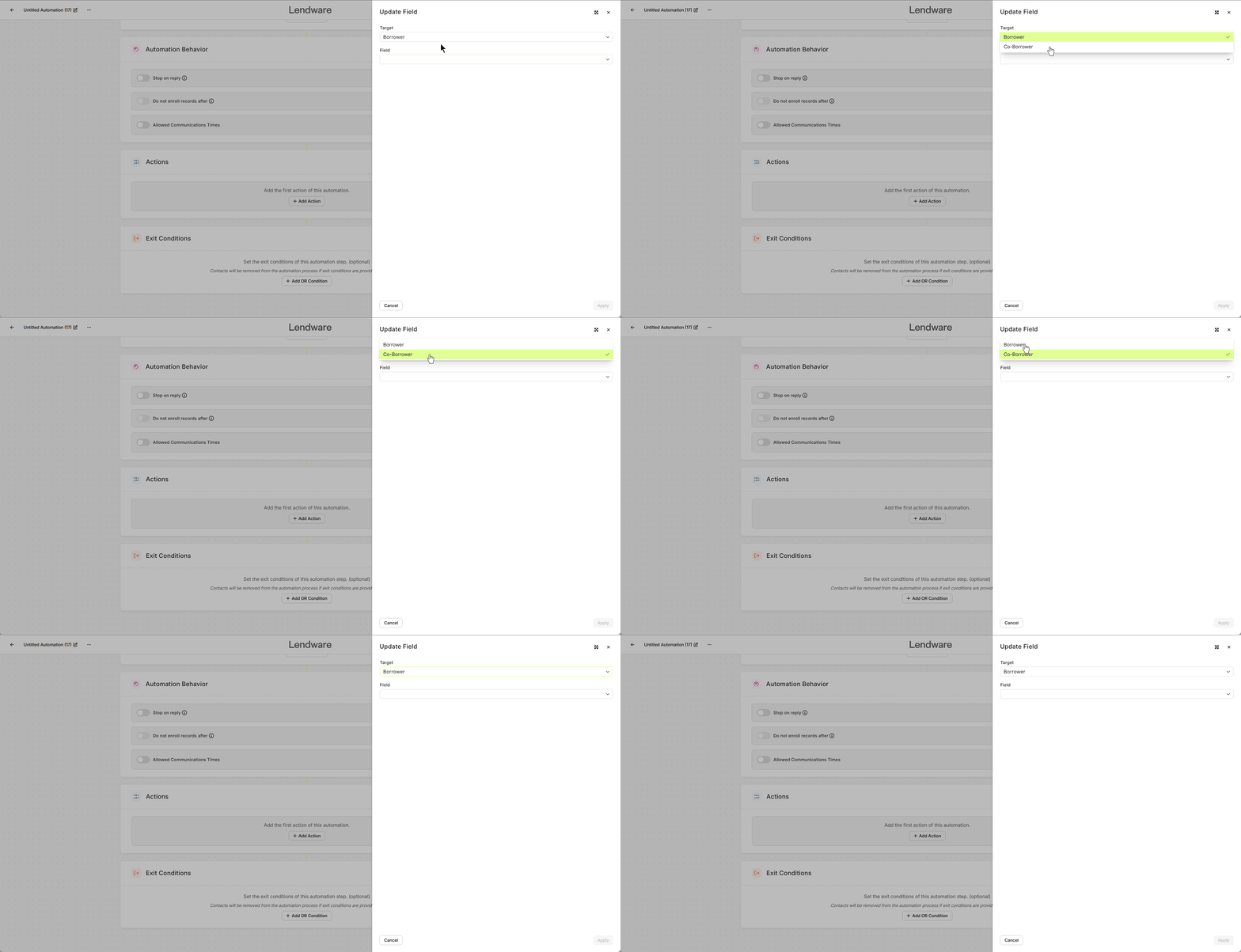
Choose which record will be updated:
Contact Automations
-
Borrower
-
Co-borrower
Transaction Automations
-
Transaction
-
Borrower
-
Co-borrower
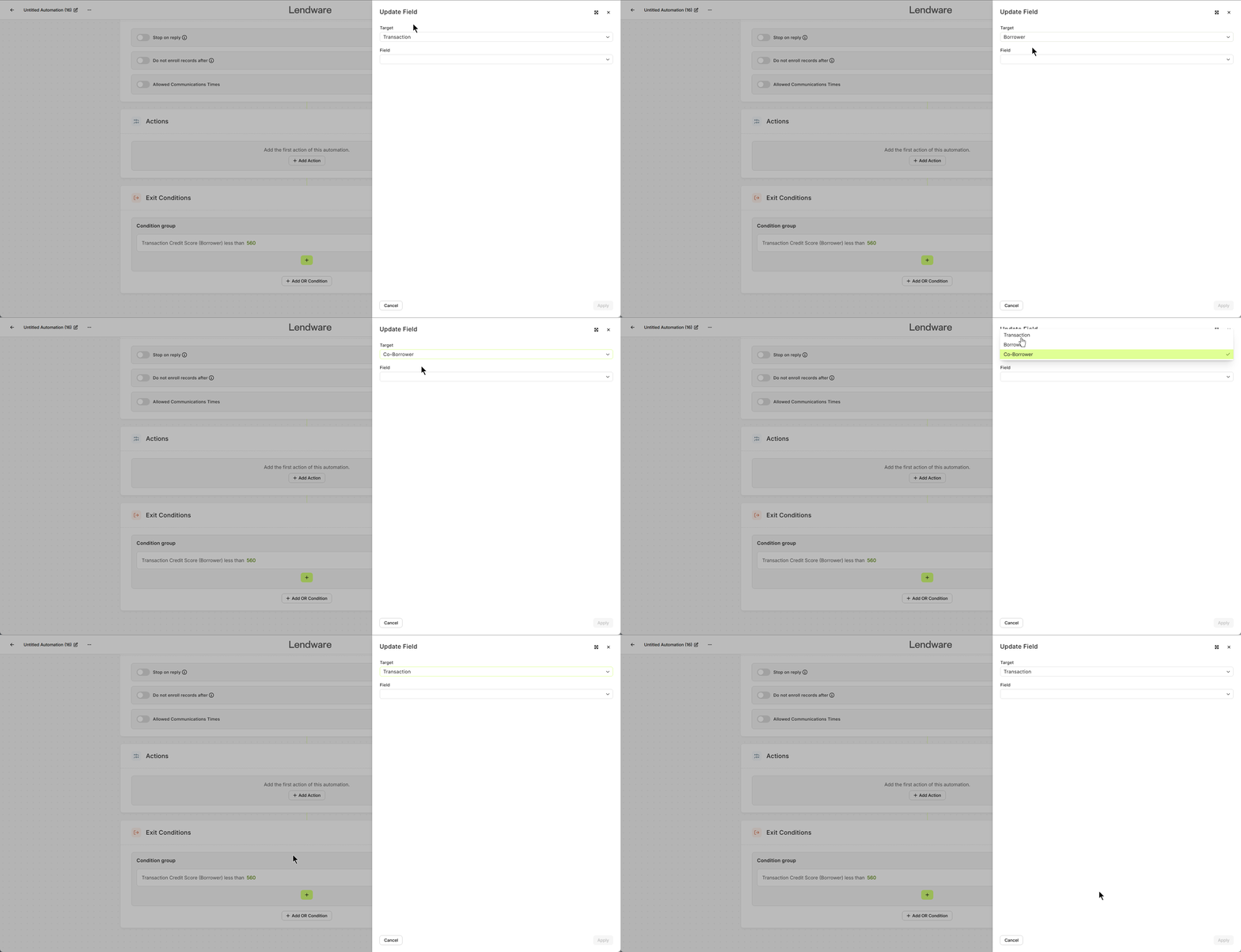
The available targets depend on the automation type (Contact vs Transaction).
2. Choose a Field
Select the field you want to update.
Supported field types include:
-
Text fields (e.g., Address)
-
Date fields (e.g., Birthday)
-
Dropdown fields (e.g., Marital Status)
-
Numeric fields (e.g., Loan Amount)
-
User fields (e.g., Owner, Assignee)
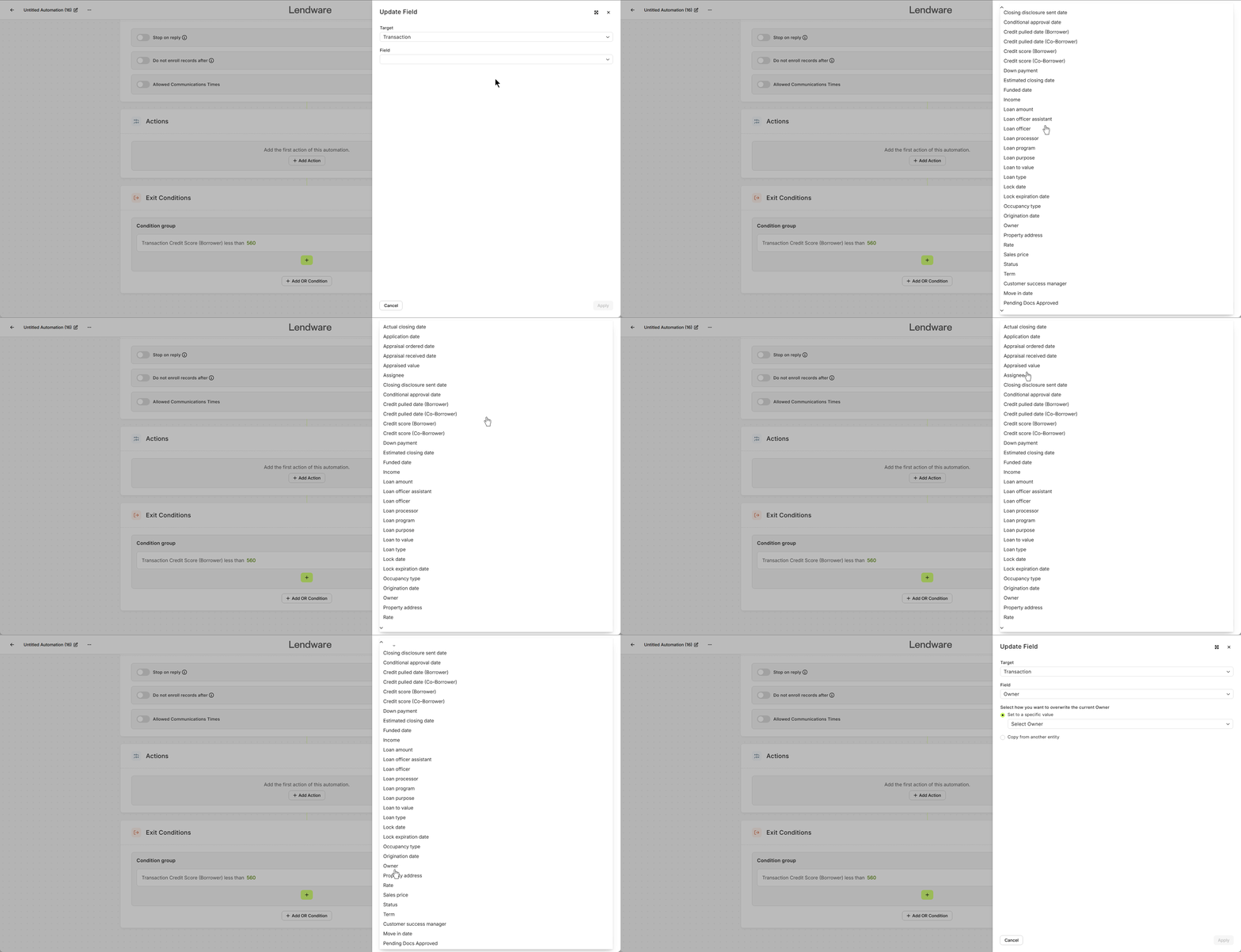
Not all fields may be available depending on the record type.
3. Set the Value
You can define the value in two ways:
Manual Value
Enter a fixed value directly into the field.
Examples:
-
Set Birthday to a specific date
-
Set Loan Amount to a fixed number
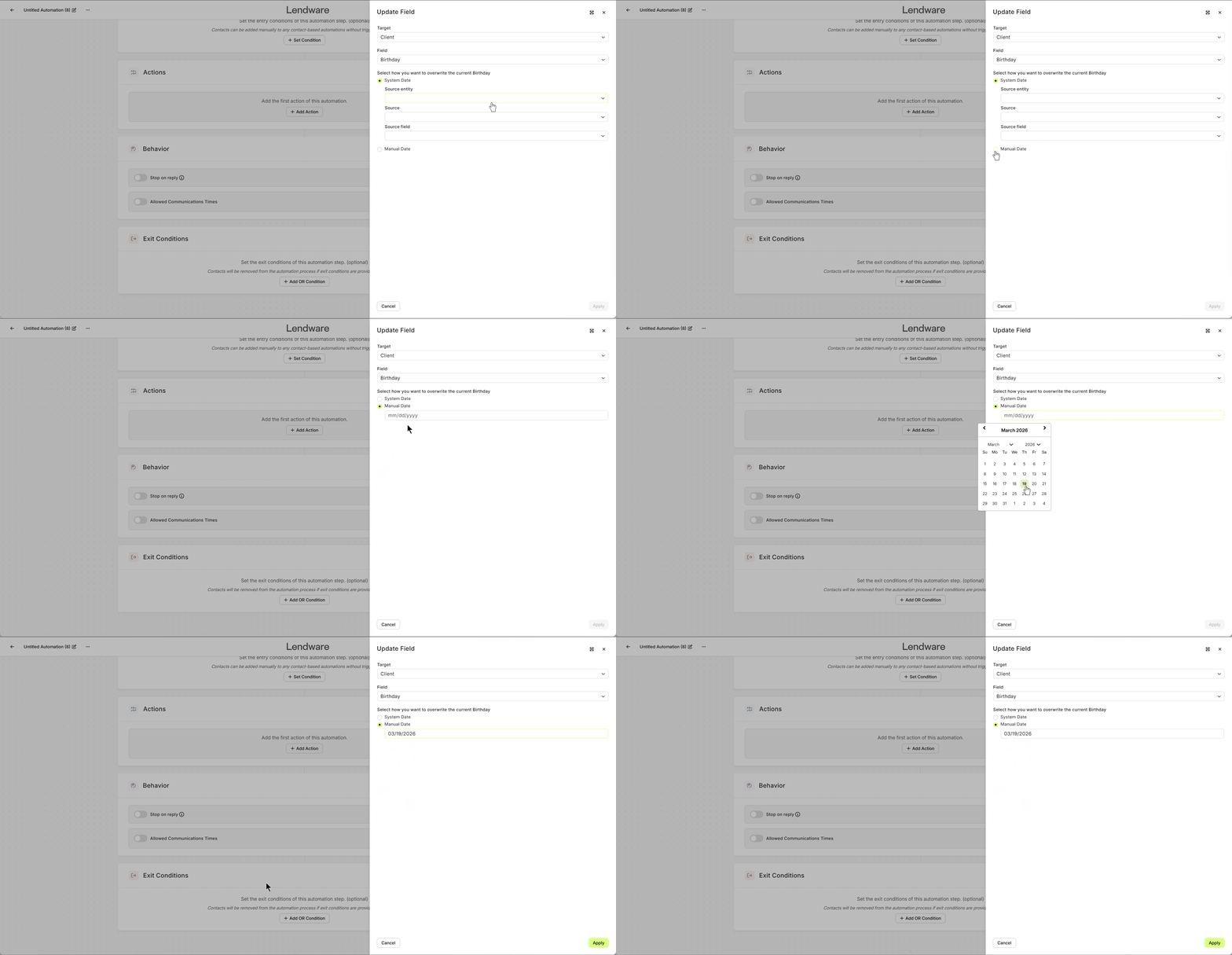
Use manual values when the data should always be the same.
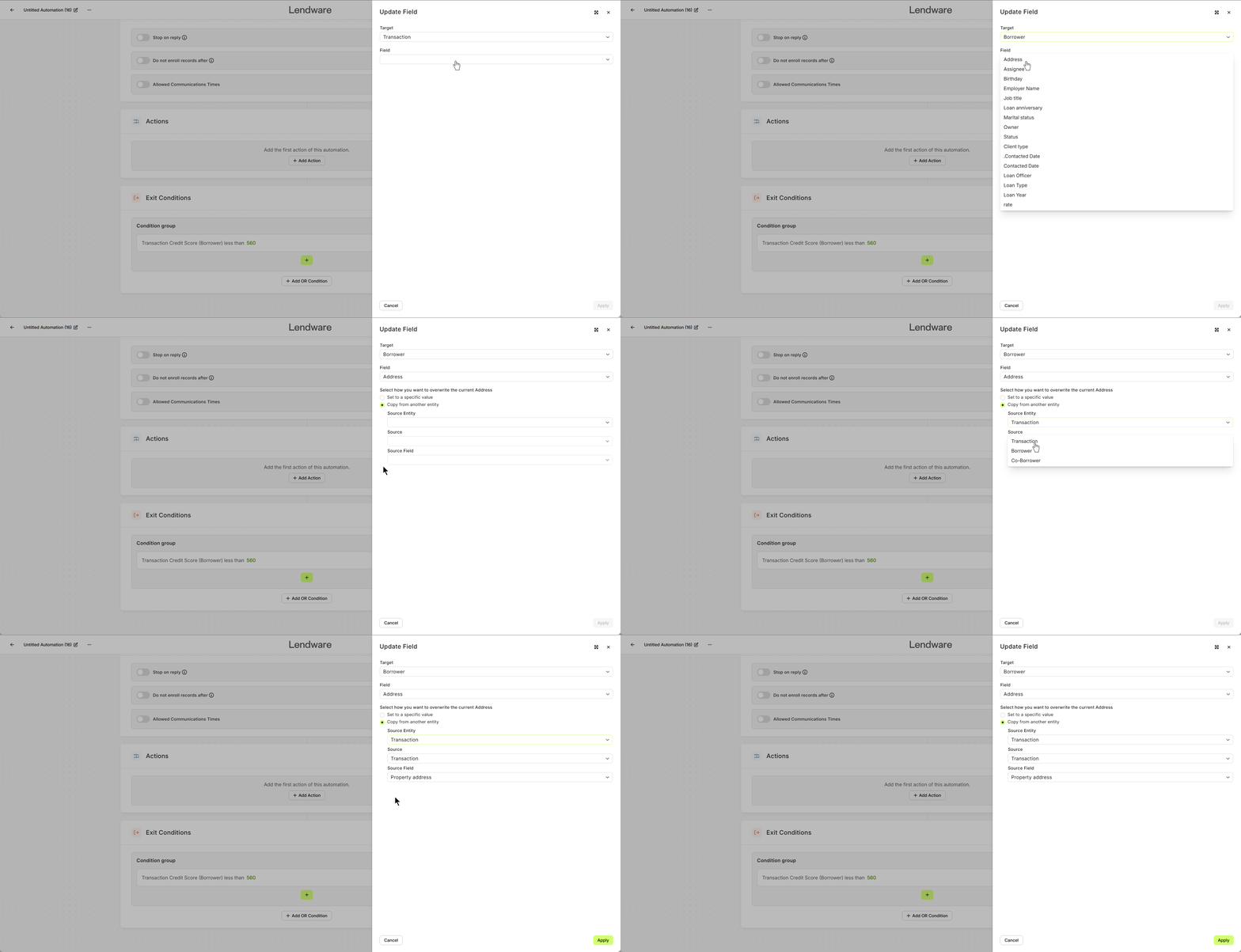
Copy from Another Record
Use data from a related record. When selecting this option, you will configure the following:
-
Target → The record being updated
-
Field → The field you want to update
-
Overwrite Method → How the value will be applied
-
Source Entity → Where the data is coming from (Contact or Transaction)
-
Source Record → Which related record to pull from
-
Source Field → The specific field to copy
Examples:
-
Transaction Property Address → Borrower Address
Note:
Some fields can only be updated from the same field type on another record.
For example:
- Borrower Status can only be set from another "Status" field (e.g., Co-borrower Status)
- It cannot be set from unrelated fields like Transaction Status or Marital Status
This ensures data consistency and prevents invalid updates.
Understanding how different field types and automation scopes behave will help ensure your automations work as expected.
Field Types
Some fields behave differently depending on their type:
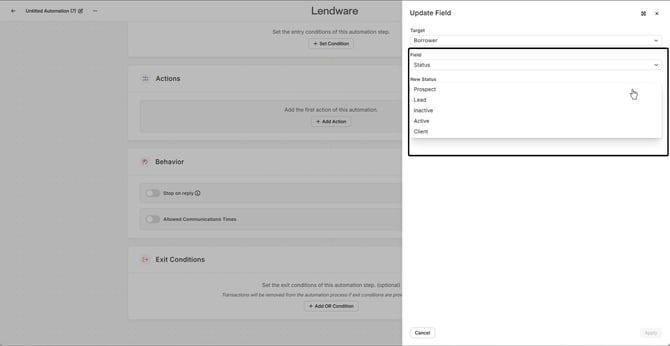
Dropdown Fields
-
Only allow selecting from predefined values
-
Cannot be manually typed
If a value is not listed, it cannot be set through this action.
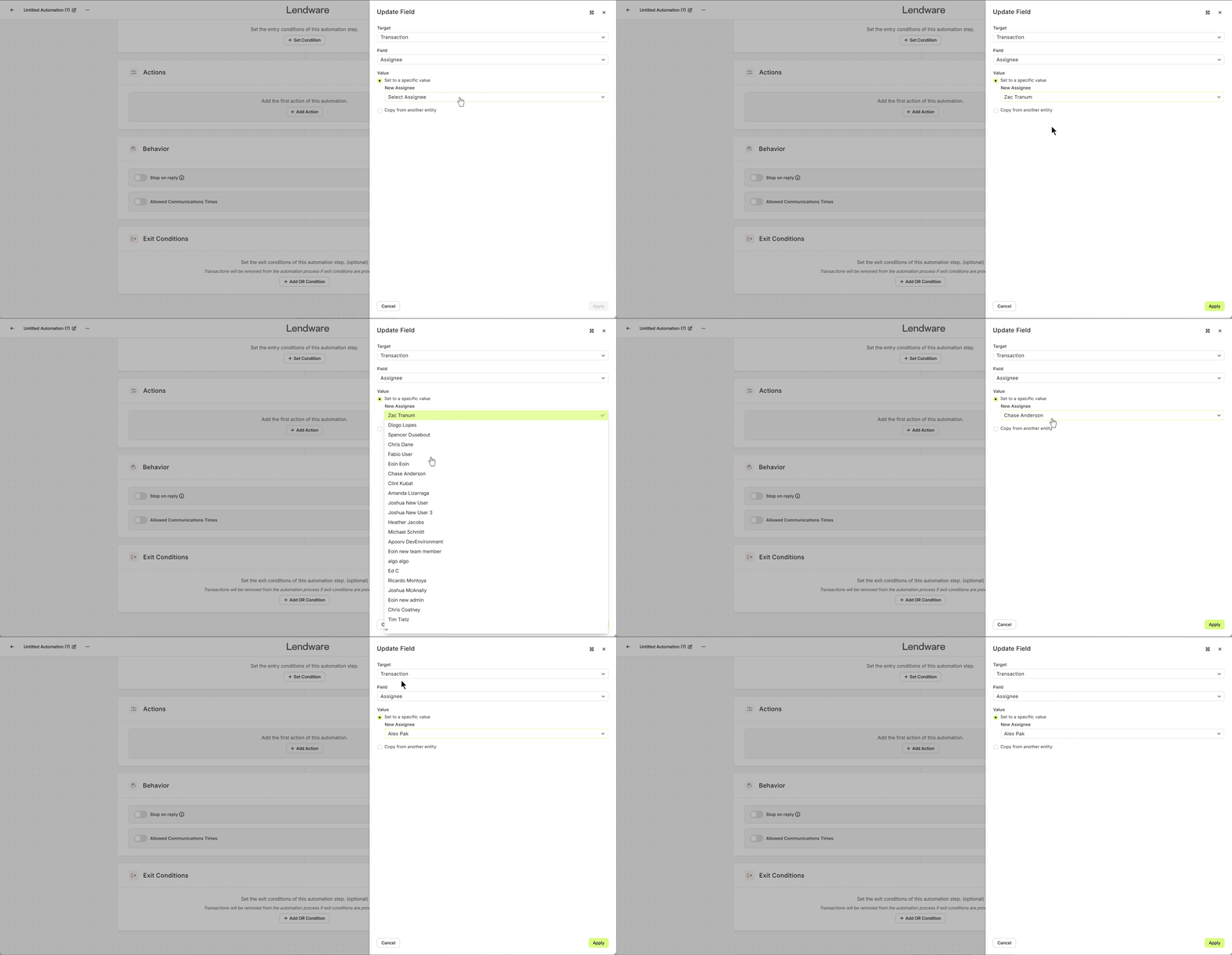
User Fields (Owner / Assignee)
-
Team-level automations → Users can be selected directly
-
Enterprise-level automations → Values must be copied from another record
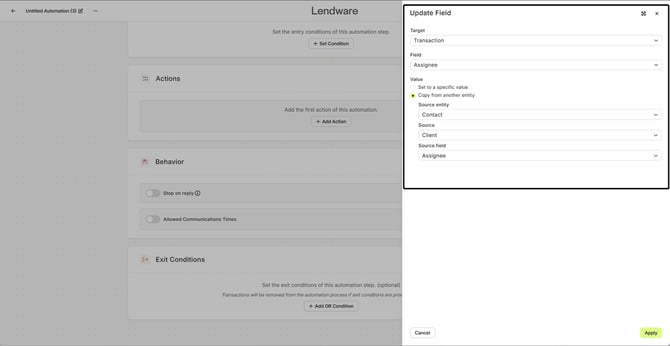
Direct user selection is only available at the team level.
Automation Scope
The available fields and data depend on the type of automation:
Contact Automations
-
Limited to contact-related fields
-
Cannot pull data from transactions
Transaction Automations
-
Access to additional fields such as:
-
Loan details
-
Dates
-
Numeric values
-
-
Can update:
-
Transaction
-
Borrower
-
Co-borrower
-
-
Contact automations do not have access to transaction data.
-
Use transaction automations when working with loan or deal-related data.
Automation Behavior
Triggers Other Automations
Field updates behave the same as manual updates:
-
Can trigger other automations
-
Will go through standard automation checks
Updating a field may cause additional automations to run if their conditions are met.
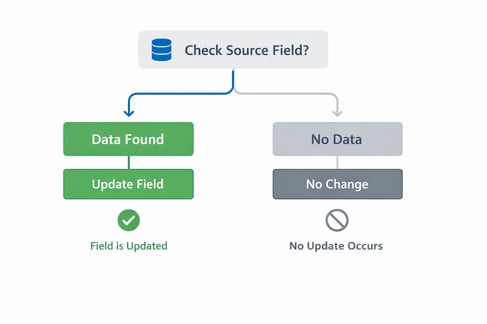
Graceful Handling of Missing Data
If required data is missing, the action will not fail:
-
If the target record does not exist → no update occurs
-
If the source field is empty → no value is applied
-
Existing values remain unchanged
Update Status Replacement
-
The Update Status action has been replaced by Update Field
-
Existing automations using Update Status will continue to work
-
New automations should use Update Field
Best Practices
-
Use Copy from another record to keep data consistent
-
Be mindful of automation loops when updating fields
-
Test automations with different scenarios before deploying
The Update Field action gives you full control over how data is updated across records, making automations more powerful and flexible.
If a field or option is not currently available, it may be added in future updates as functionality continues to expand.