
Reminders are sent directly to the task assignee, not the person creating or editing the task, so the right person always gets notified. You can set them quickly and easily when creating or editing a task from the Edit Drawer.
How to Enable a Reminder
- Open or create a task.
- Scroll down to the bottom of the Edit Drawer.
- Toggle “Reminder” to turn it on.
Reminder Settings
Select Time Frame
Choose how far in advance you’d like to be reminded:
- 1 day
- 3 days
- 5 days
- 1 week
Select the specific time you want to receive the reminder.
-
Available in 30-minute intervals.
- The selected time is validated based on the team’s timezone.
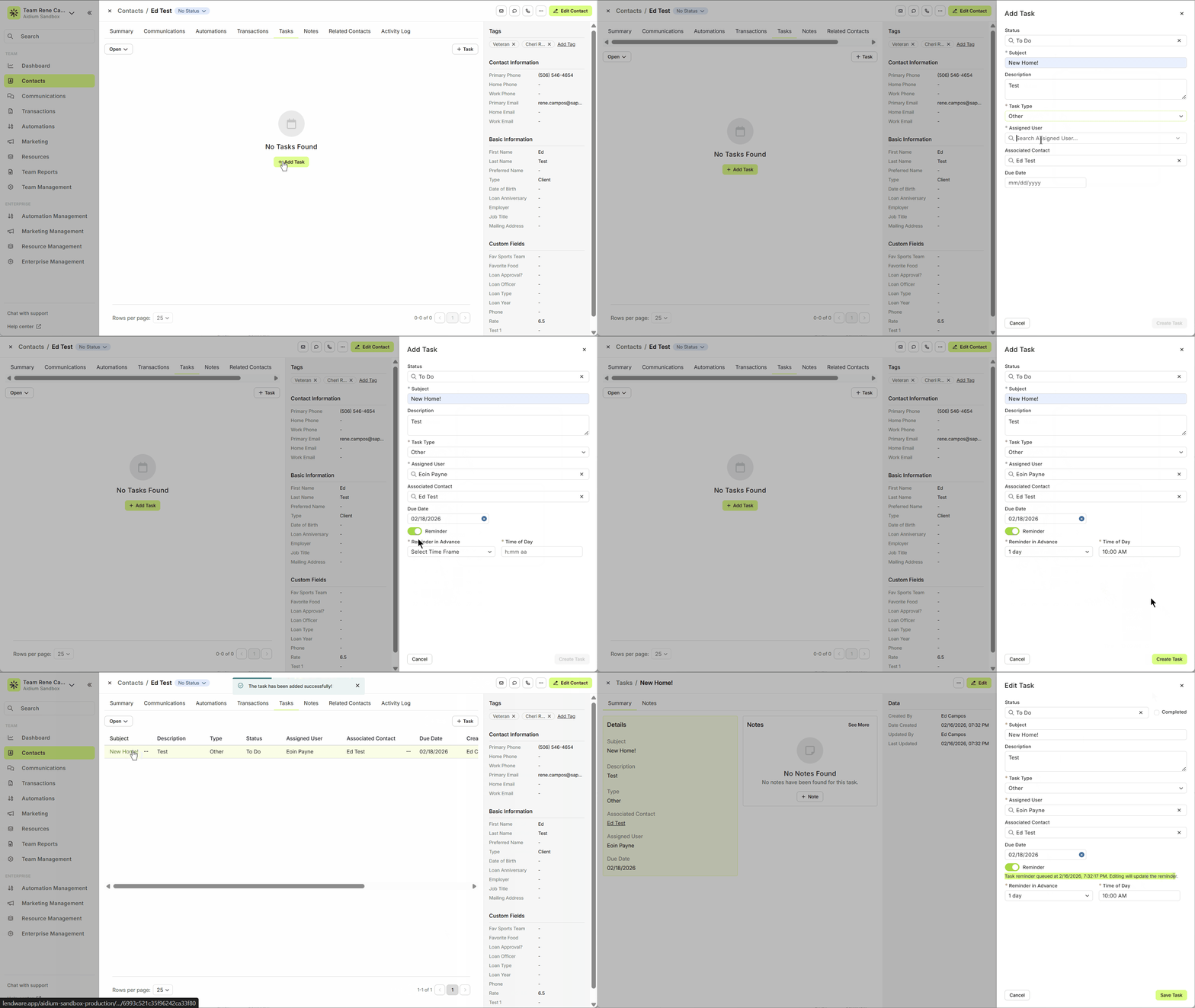
By default, Reminders are turned off.
You can’t set a reminder for a date in the past.
If you try, you’ll see this message: “Cannot set a reminder for a date in the past.”
The reminder is scheduled according to the team’s timezone, so make sure the time you select is valid for your team.
Reminder Status
Once a reminder is set, you’ll see a message when editing the task:
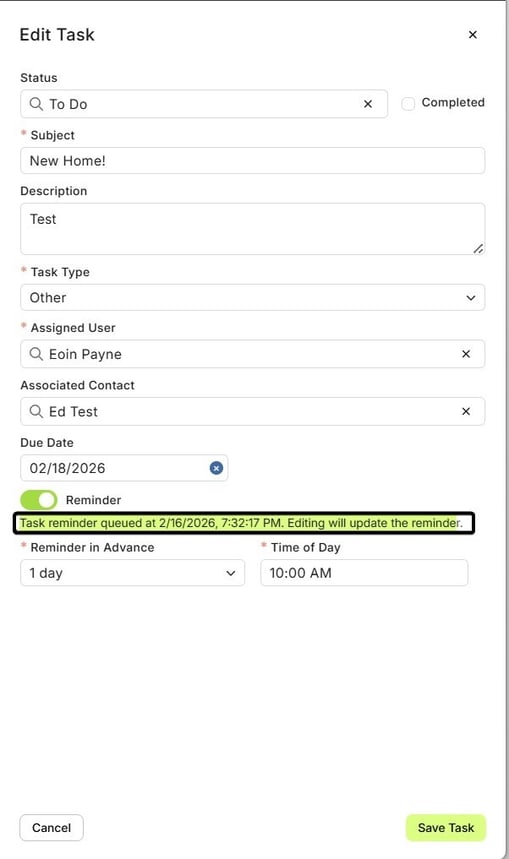
This means your reminder is successfully scheduled. If you make any edits to the task, the reminder will automatically update.
How You’ll Be Notified
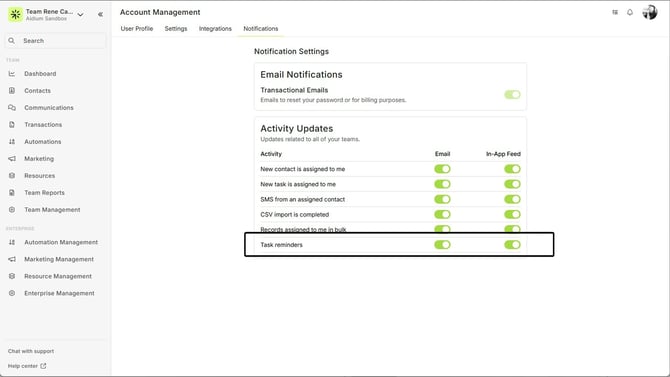
The assigned user will get notifications via Email or In-App Feed, depending on their notification settings:
To review or change these settings: Go to Account Management → Notifications → Activity Updates
Here they can toggle both email and in-app feed reminders.
Email Reminder
The assignee can click “See Task” in the email to open the task summary directly.
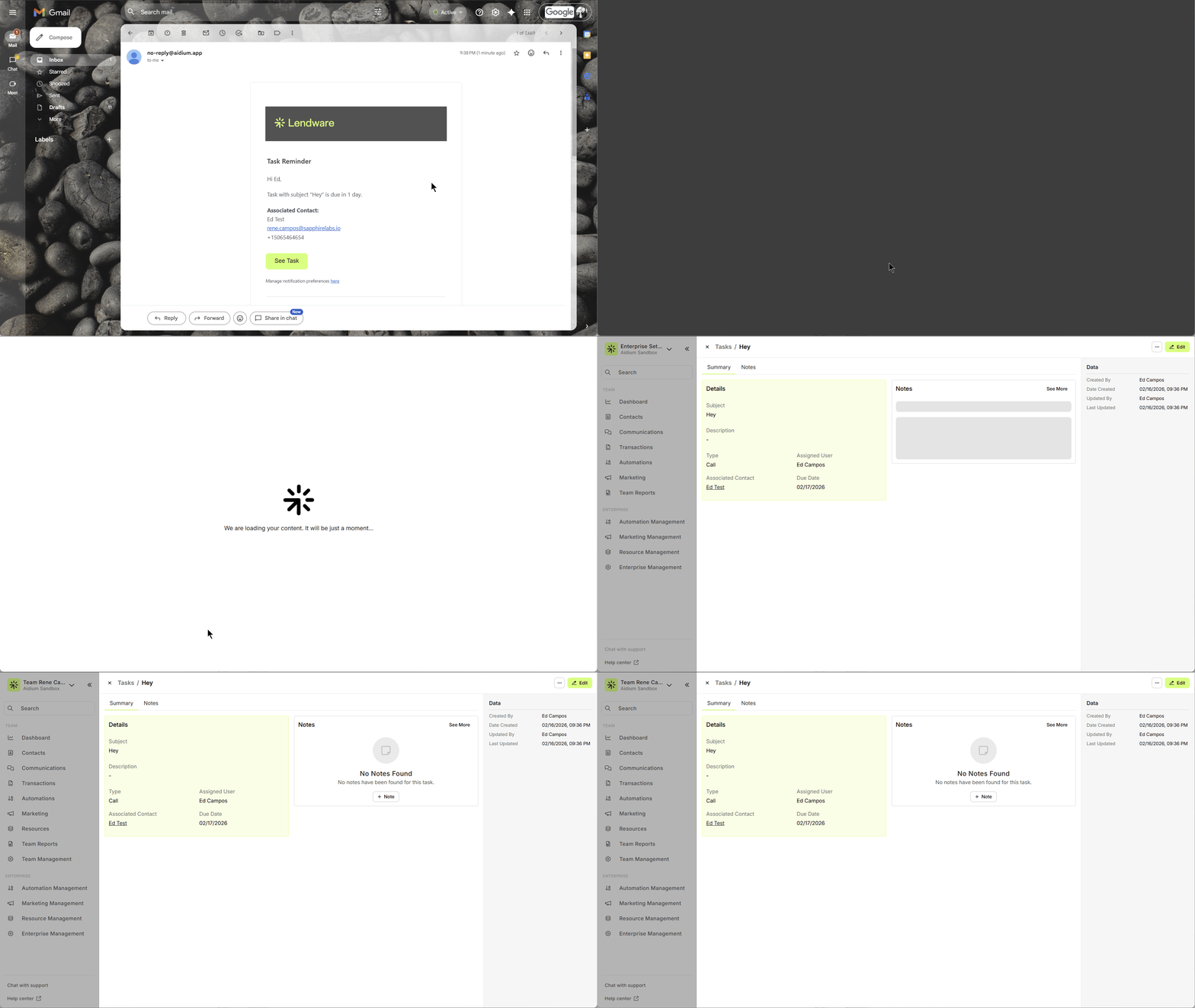
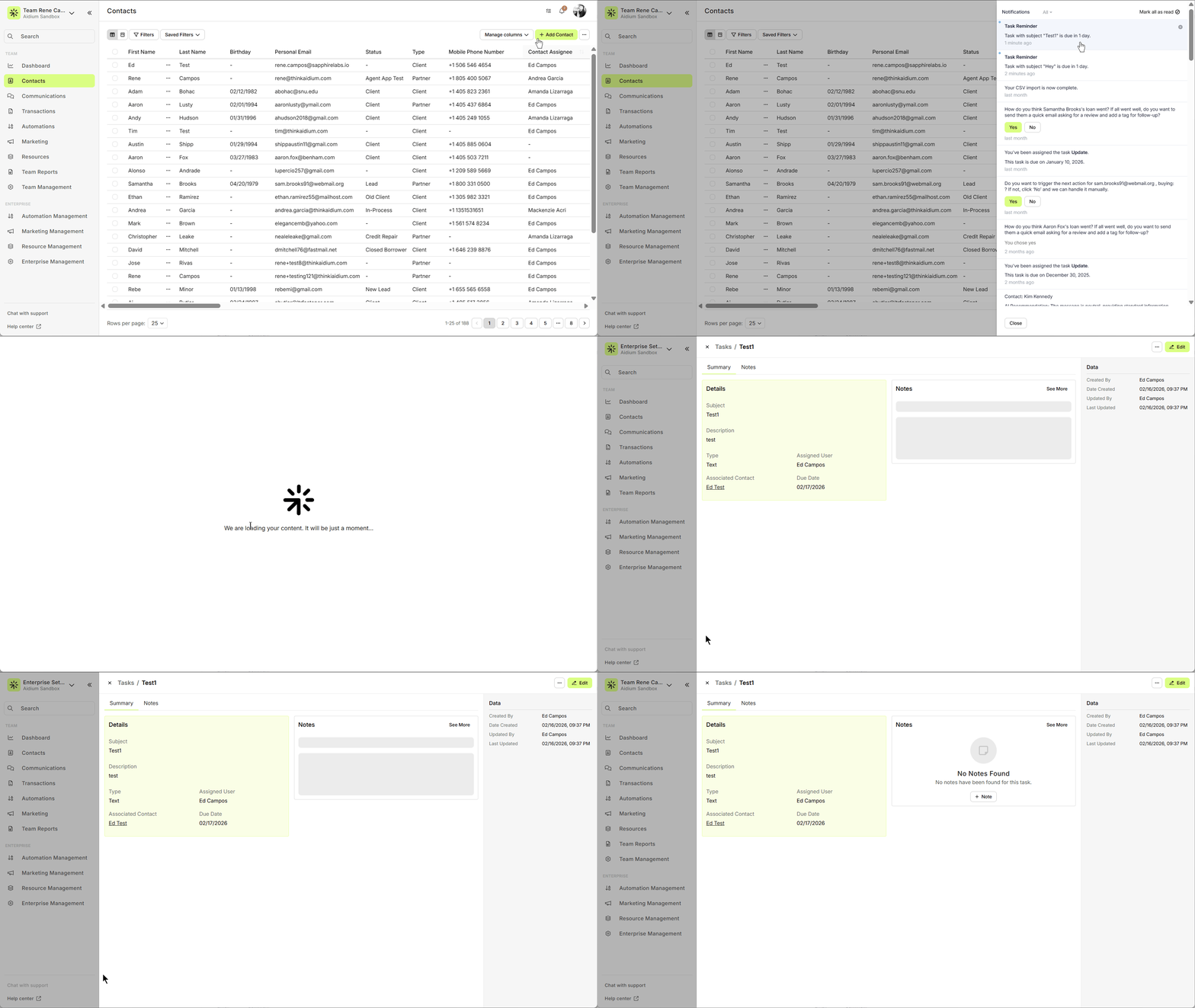
In-App Feed Notification
Clicking the notification will open the task summary, ready to review or complete.
Tip:
Schedule reminders a few days in advance so the assignee has enough time to act and never misses a task.