
Duplicate contacts can clutter your database and create confusion. The Merge Contacts feature allows you to combine multiple contact records into a single Target contact while carefully choosing which data fields to retain.
Select Contacts
- Navigate to your Contacts List.
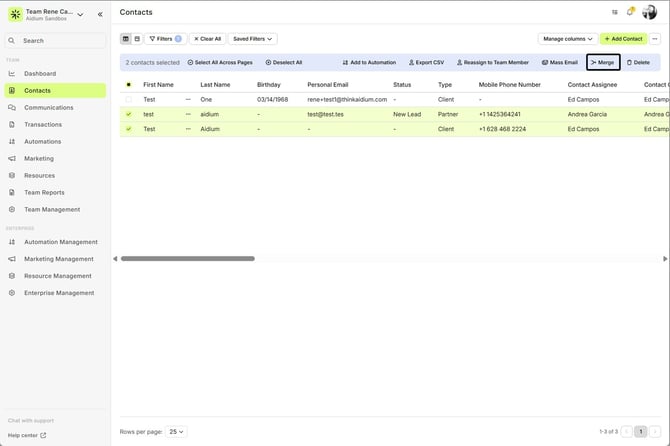
- Select two or more contacts you want to merge.
- In the Mass Actions menu, click
 Merge.
Step 1: Choose the Primary Contact
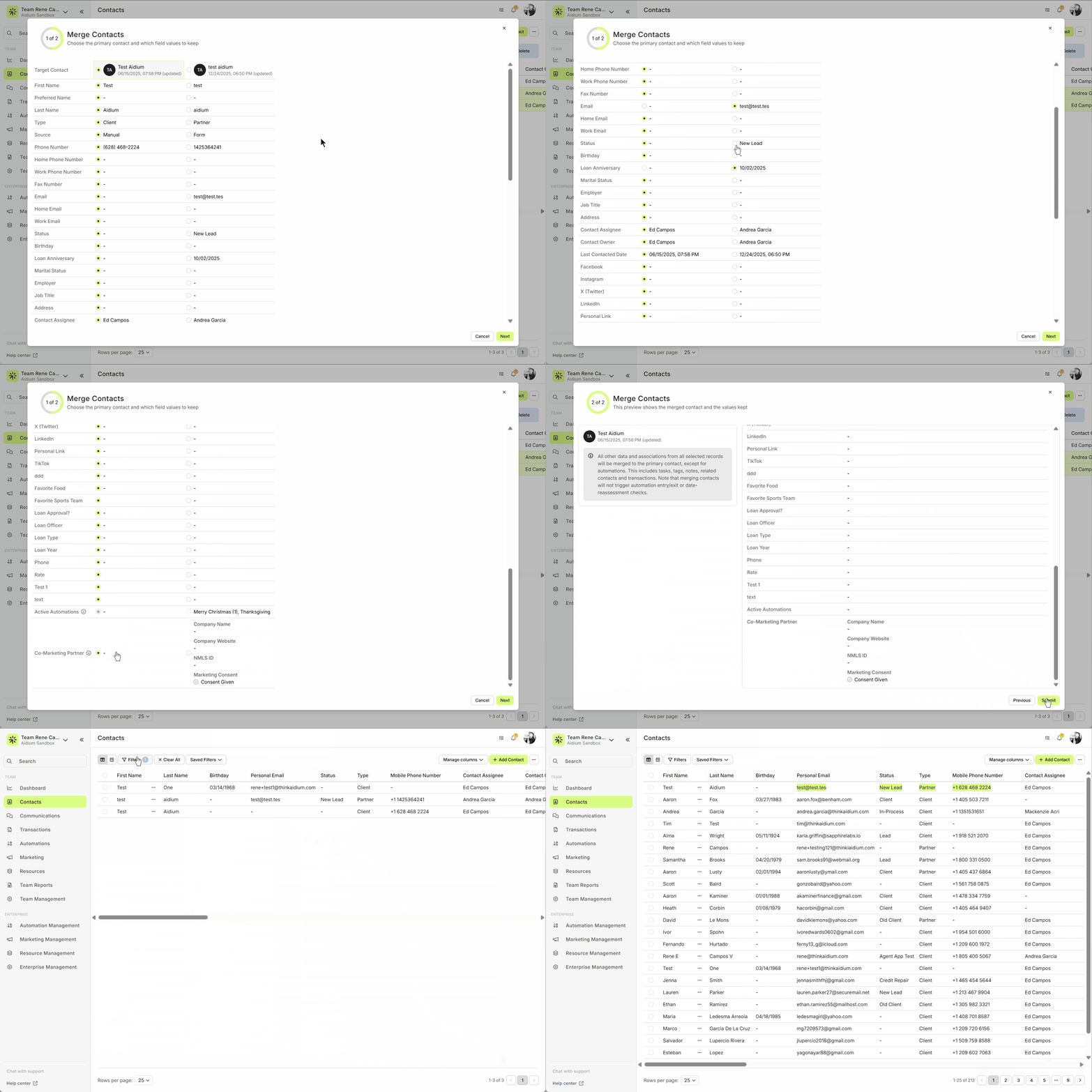
- The Merge Contact window will display all selected contacts with their key information: Name, Email, Phone, Status, Automations, Related Contacts, etc.
- Choose the Target record. This selects all of its field values by default. Note this contact is the one for whom active Contact automations are kept.
Review Automations & Data
-
Merging contacts does not trigger automation entry/exit or date-reassessment checks.
-
If you select a field value (email/phone) that is opted out, that opt-out status will carry over to the Target Contact.
- The “preferred” relationship (e.g., Referred By, Business Partner, etc.) now defaults to the oldest/first-created relationship of that type across all merged records.
Notes:
For each field (Email, Phone, Job Title, etc.), choose which value to retain. Only one value per field is allowed.
If you want automations from another contact, change the Target Contact.
If you select a phone or email that is opted out, that opt-out status will carry over to the Target Record.
Partner Marketing data is now a selectable datapoint in the merge modal. If you choose this datapoint, the Target Contact’s record type will automatically update to Partner.
By default, Partner Marketing details and SMS consent values follow the Target Contact unless you explicitly select a different value during the merge.
If your enterprise requires SMS consent, the merge modal will also display SMS Opt-In status (similar to how “Opted Out” currently appears).
Step 2: Confirm & Merge
-
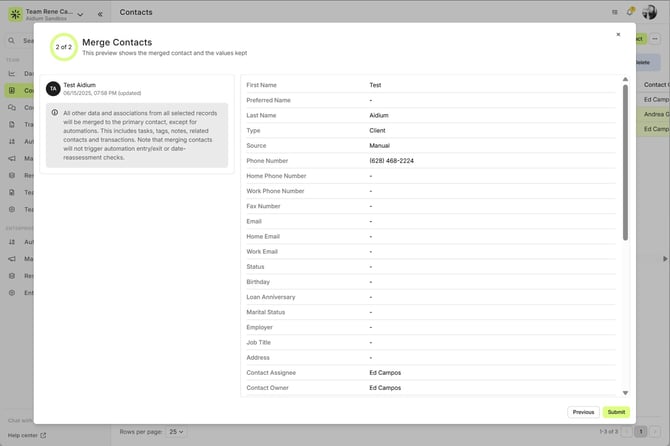
Click Next to review the final merged contact.
-
All selected records’ data and associations will merge into the Target Contact, including:
-
Tasks
-
Tags
-
Notes
-
Related Contacts
-
Transactions
- Active Transaction Automations
-
-
- Activity Log entries
-
- Communications
-
Use Previous to adjust selections if needed.
-
Click Submit to finalize the merge.
Success! Your contacts are now consolidated into one unified record.
Key Tips
- Double-check the Primary Contact’s automations and important fields before submitting.
- Be aware that merges cannot be undone, since records being merged into the Target are deleted.
- Only one value per field can be kept—plan carefully.
- Be mindful of SMS consent and partner marketing data.
- Always review automations, related contacts, and important fields before hitting Submit to avoid overwriting critical information.
After the Merge
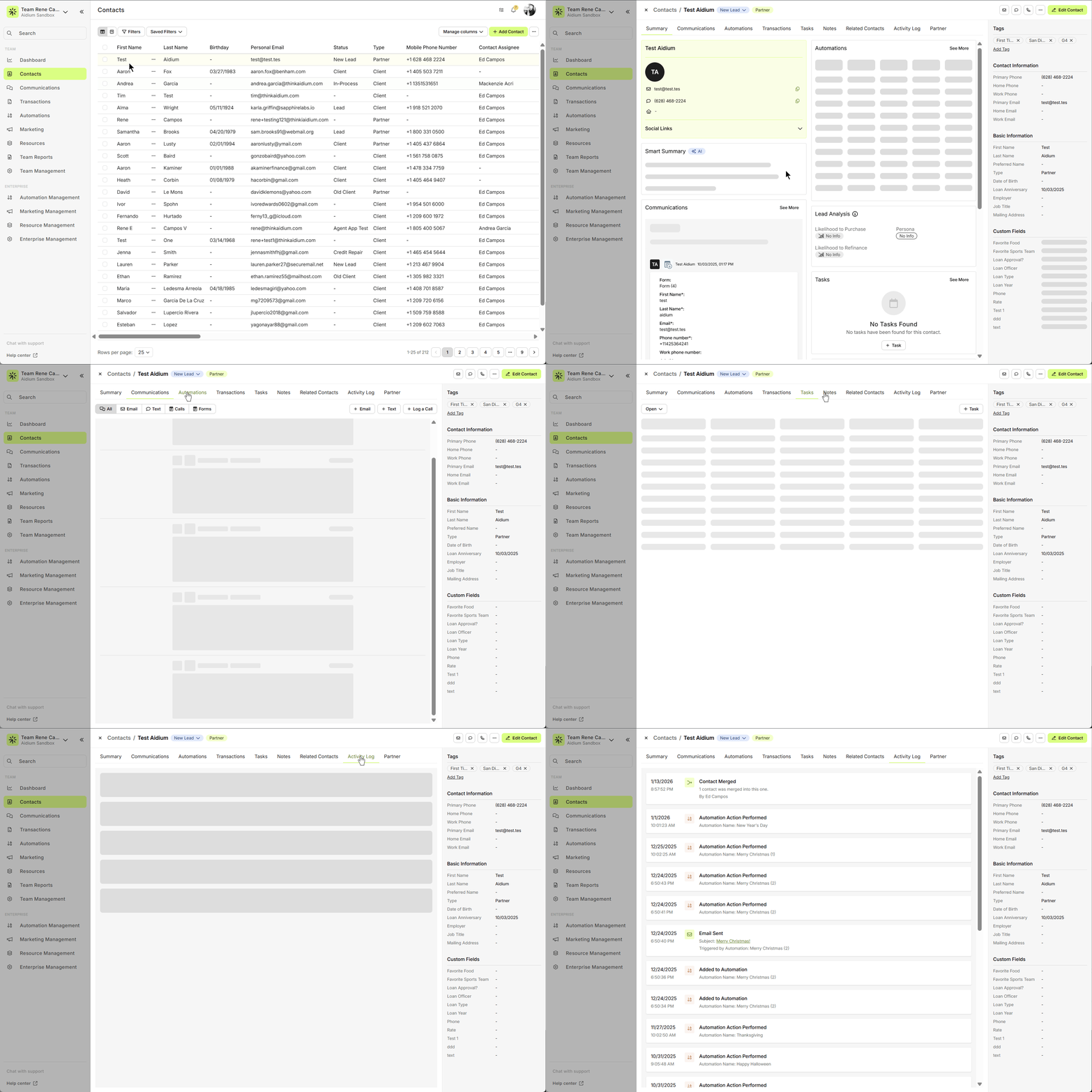
After submitting your merge request, the system will process things for a moment, and you'll see a success message. Refreshing the page will show the Target Record and any updated datapoints from the merge.
When you open the merged contact:
-
Go to the Activity Log, where you’ll find a clear entry indicating that a merge occurred.
-
You’ll also be able to confirm that all tasks, tags, notes, related contacts, transactions, and selected field values from the original records have been successfully consolidated into this single contact.
Why This Matters
-
Keeps your database clean and avoids duplicates.
-
Ensures that key information is retained and accurate.
-
Gives you full control over which data is preserved during merges.
Need more help? Check out: Contact View - Related Contacts