
By completing this integration, your team members will be able to log into the Lendware CRM using their existing Microsoft credentials, streamlining access and enhancing security. Furthermore, user provisioning will be automated, ensuring that when you grant access in Entra, the user is automatically created in Lendware's authentication system.
How It Works
The integration establishes a secure handshake between your Microsoft Entra enterprise account and Lendware's Auth0 authorization service.
- Access Control: You control which users have access to Lendware directly from your Entra environment.
- Automated Provisioning: Entra automatically provisions users in Lendware's authentication system via SCIM.
- User Invitation: A Lendware administrator invites the provisioned users within the Lendware Enterprise Settings.
- Seamless Login: Users navigate to the Lendware application and log in using their Microsoft email and SSO credentials, bypassing the need for a separate Lendware password.
Prerequisites
Before beginning the configuration, ensure you have the following:
- An active Microsoft Entra (Azure AD) enterprise or business account.
- Administrative access to your Entra environment (or the ability to provide temporary admin access to the Lendware Implementation team).
- Your company's email domain(s) that will be used for SSO.
Configuration Steps
The setup process requires coordination between your team and the Lendware Implementation team. You will configure the application in Entra, provide specific details to Lendware, and then Lendware will provide the final credentials needed to complete the SCIM provisioning setup.
Step 1: Create the Enterprise Application in Entra
- Log in to the Microsoft Entra (Azure) portal.
- Navigate to Enterprise Applications.
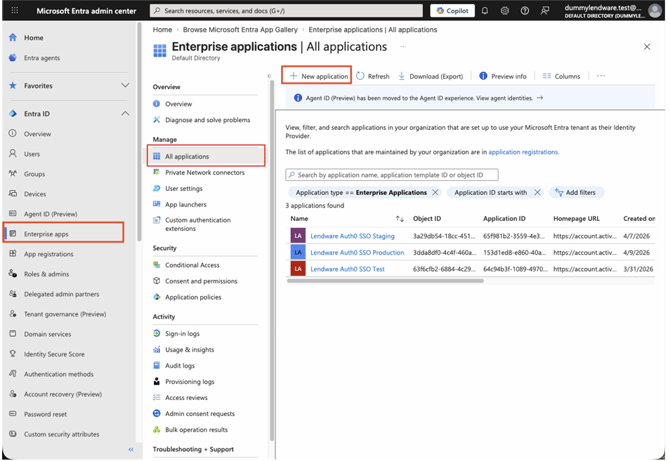 Click + New Application.
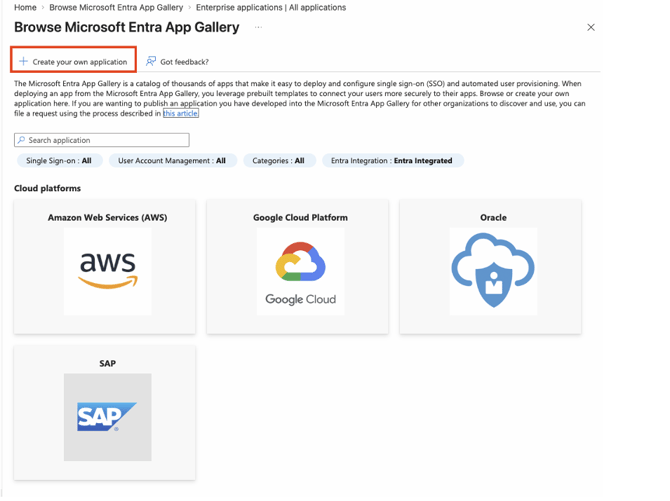
- Select + Create your own application.
- Enter a descriptive name for the application (e.g., Lendware Auth0 SSO).
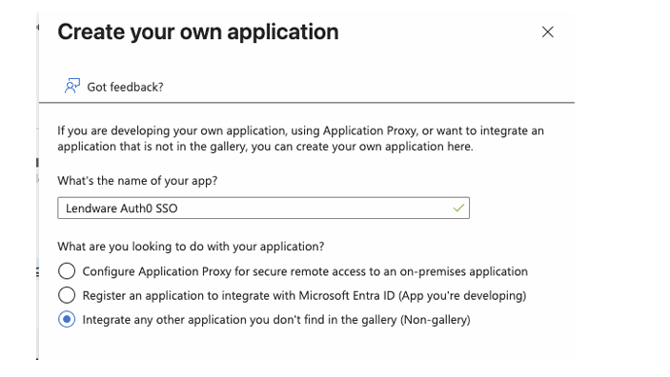
- Select the option: Integrate any other application you don't find in the gallery (Non-gallery).
- Click Create.
Step 2: Configure Single Sign-On (SAML)
Once the application is created, you need to configure the SAML settings.
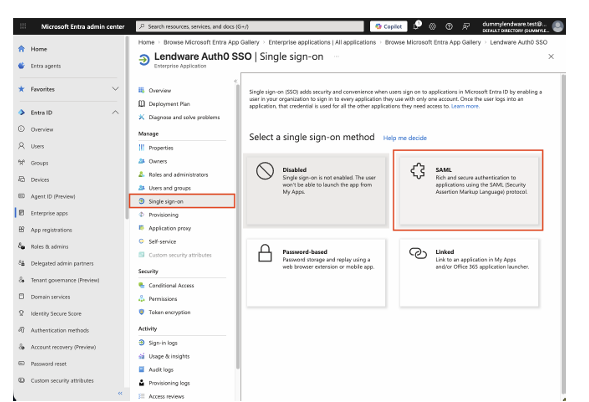
- In the application menu, select Single sign-on.
- Choose SAML as the single sign-on method.
- In Section 1 (Basic SAML Configuration), click the edit icon and enter the following values provided by the Lendware team:
- Identifier (Entity ID): urn:auth0:aidium-production:AzureSSO-<customerName> (Lendware will provide your specific customer name value)
- Reply URL (Assertion Consumer Service URL): https://auth.lendware.app/login/callback?connection=AzureSSO-<customer-name> (Lendware will provide your specific customer name value)
- In Section 2 (Attributes & Claims), click the edit icon. Modify the following claims while keeping the default initial fields:
- Set emailaddress to user.userprincipalname
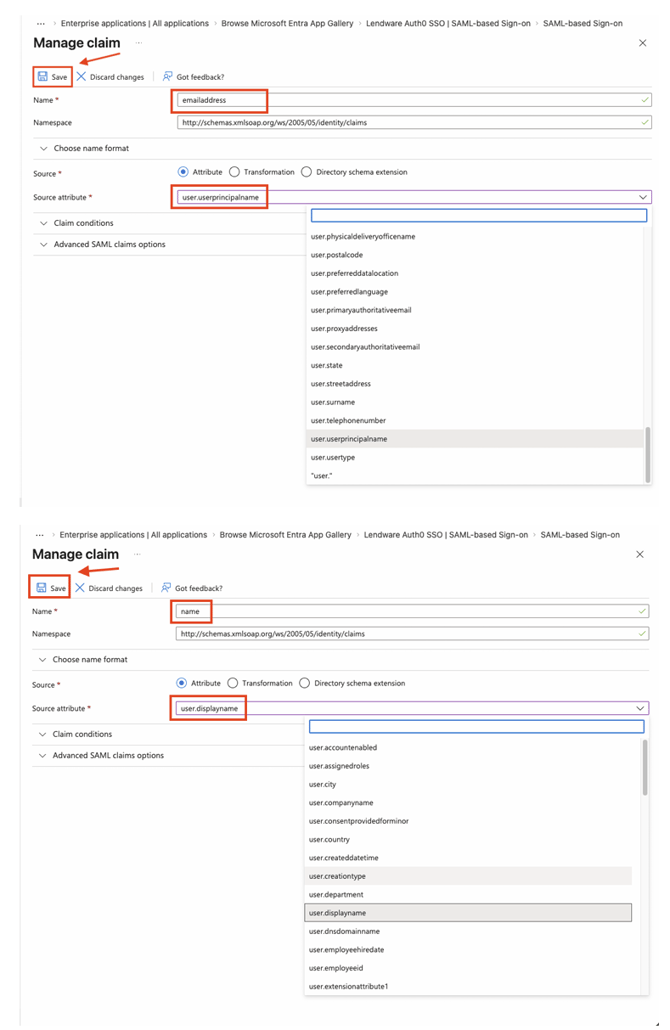
- Set name to user.displayname
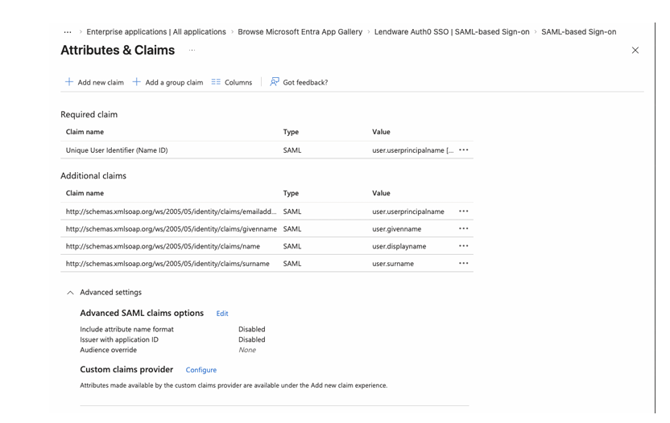
- Set emailaddress to user.userprincipalname
- In Section 3 (SAML Certificates), download the Certificate (Base64)
- Action Required: Securely provide this certificate file to the Lendware Implementation team
- In Section 4 (Set up [Your App Name]), copy the Login URL
- Action Required: Securely provide this URL to the Lendware Implementation team
Step 3: Assign Users
Specify which users in your organization should have access to Lendware via SSO.
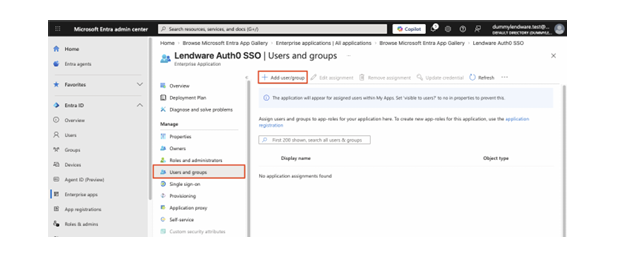
- Navigate to Users and groups within your Lendware enterprise application in Entra.
- Click + Add user/group.
- Select the users or groups that require access.
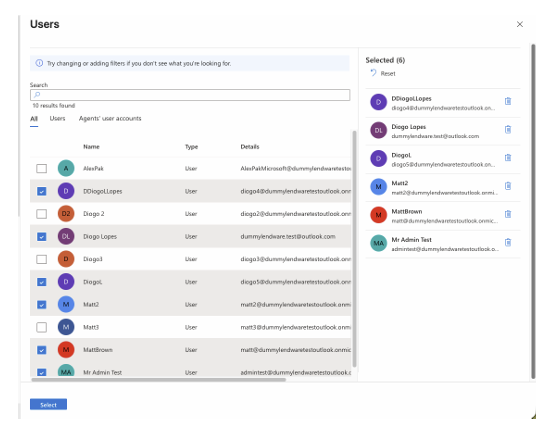
- Click Select, and then click Assign.
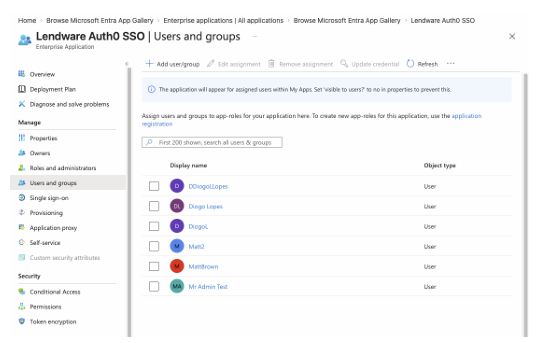
Step 4: Configure Automated Provisioning (SCIM)
Note: You must wait for the Lendware Implementation team to provide the Admin Credentials before completing this step.
- Navigate to Provisioning within your Lendware enterprise application in Entra.
- Click + New configuration (or Update credentials if modifying an existing setup).
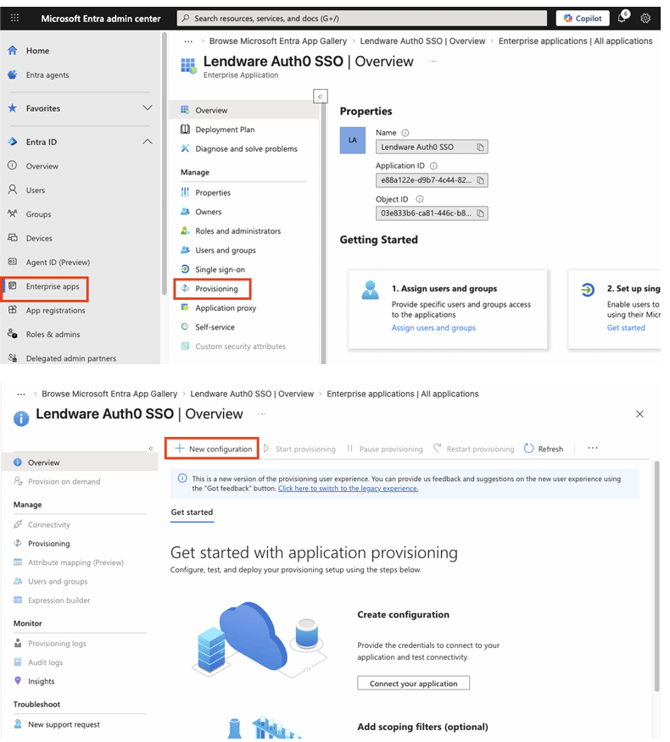
- Set the Provisioning Mode to Automatic.
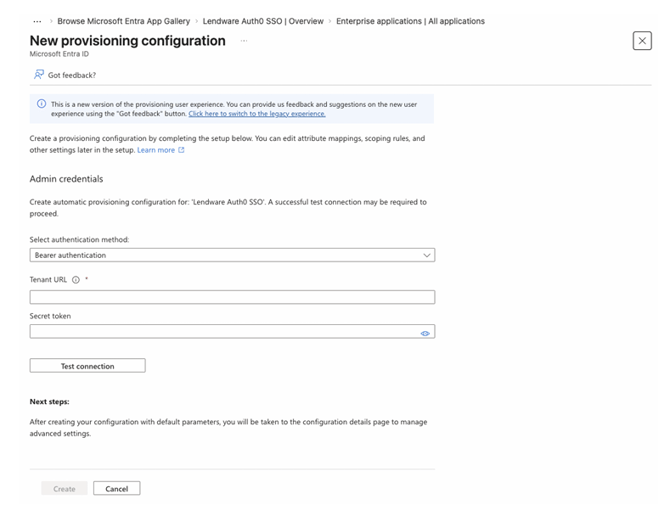
- Under Admin Credentials, enter the details provided by the Lendware team:
- Authentication method: Bearer authentication
- Tenant URL: https://aidium-production.us.auth0.com/scim/v2/connections/con_abxxx.../ (Lendware will provide the exact URL)
- Secret token: (Lendware will provide the secure token)
- Click Test connection to ensure the credentials are valid.
- Click Save.
Step 5: Configure Attribute Mappings
After saving the provisioning credentials, you must configure how user attributes map between Entra and Lendware.
- Under the Mappings section, select Provision Azure Active Directory Groups.
- Disable or remove the externalId attribute mapping.
- Click Save.
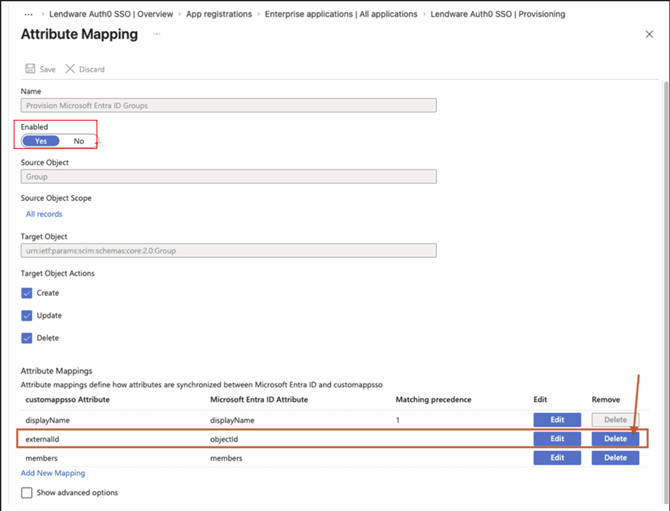
- Return to the Mappings section and select Provision Azure Active Directory Users.
- Enable the mapping and remove all attributes except the first three (typically userName, active, and displayName or similar core attributes).
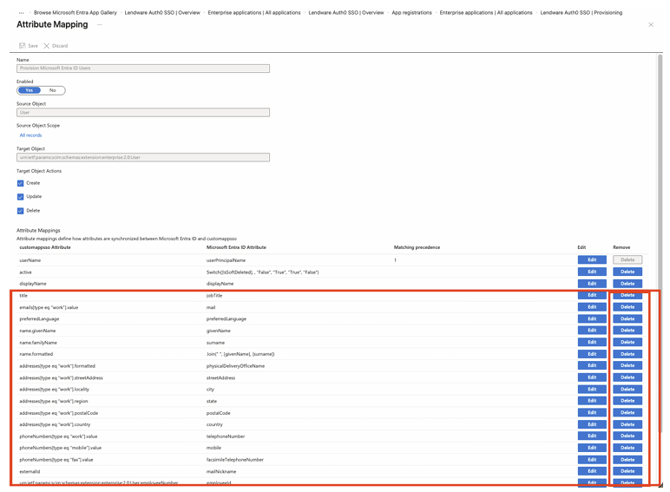
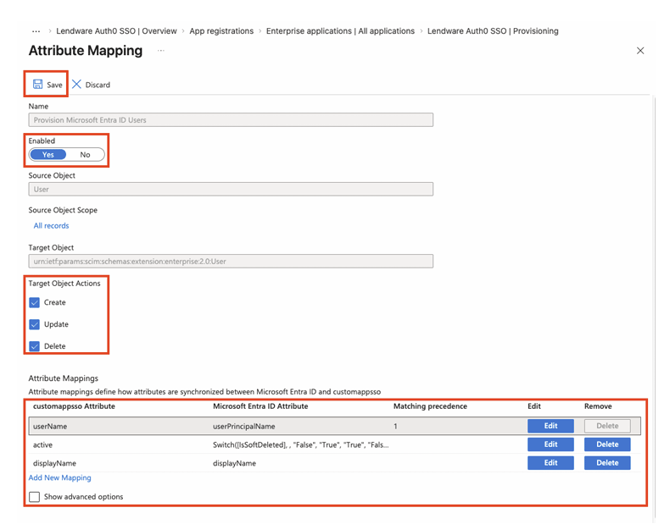
- Click Save.
Step 6: Enable Provisioning
- Return to the main Provisioning page.
- Set the Provisioning Status toggle to On.
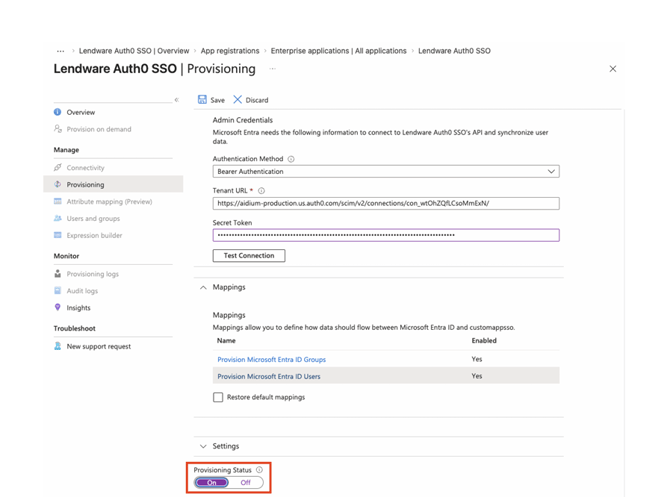
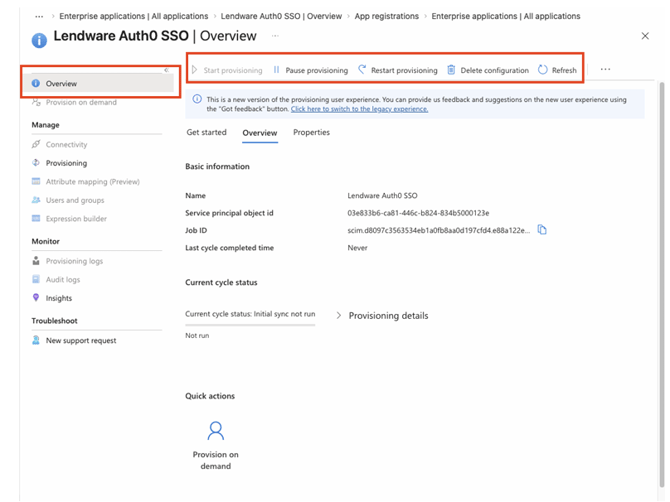
- Click Save.
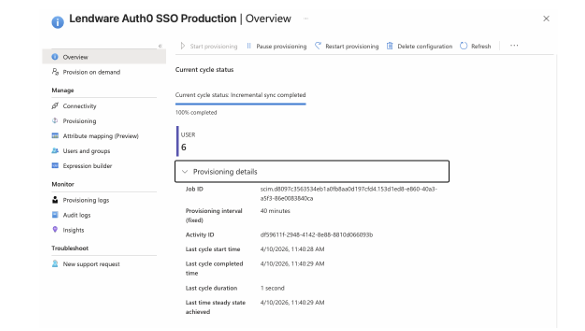
- Navigate to the Overview page to monitor the provisioning status. It may take some time for the initial synchronization cycle to complete.
Important Considerations & Best Practices
- Provisioning Order: The SCIM provisioning (Entra syncing to Auth0) must occur before you invite users into the Lendware platform. The users must exist in the authentication system first.
- Lendware Invitation: Even after users are provisioned via SCIM, a Lendware administrator must still invite them within the Lendware platform (Enterprise Settings > Members) so they exist in the Lendware database and can be assigned appropriate roles.
- Adding New Users: When adding new users to the Entra application after the initial sync, you may need to click Provision on demand in Entra to expedite their creation in Lendware's authentication system.
- Access Control: It is your organization's responsibility to manage which users are assigned to the Lendware application within Entra.
Note: Once SSO is enabled for your domain in Lendware, only users provisioned through your identity provider will be able to access the system. Attempting to invite or add a user directly within the CRM who has not been provisioned will result in an error message.
Support
If you encounter any issues during the configuration process or have questions regarding the required values, please contact the Lendware Implementation team or your dedicated Customer Success Manager.