
This article explains how "On the date" automation conditions work, why historical records can unexpectedly trigger automations, and how to configure your automations correctly to avoid future issues
Key Concept: "On the Date" Does Not Include the Year
The most important thing to understand:
"On the date" conditions only evaluate the month and day (MM/DD), not the year.
This means the automation is not checking when the event happened — it is only checking whether the record has that date value present.
Example
-
A transaction was Funded on 12/22/2020
-
An automation uses the entry condition:
-
On Transaction Funded Date
-
When the automation evaluates records on 12/22 of any year, that transaction can qualify — even though it funded years ago.
Key Point: "On the date" only checks month and day (MM/DD), ignoring the year.
Why This Happens
"On the date" is an event-based condition, not a date-range filter.
In simple terms, the automation logic is asking:
-
Does this record have a funded transaction date?
If the answer is yes, the record can enter the automation when the date condition is met — regardless of how old the transaction is.
Because there is no built-in year comparison, the automation does not distinguish between:
-
A transaction funded last week
-
A transaction funded several years ago
Common Impact
When this condition is used by itself, you may see:
-
Emails or texts sent to borrowers with historical transactions
-
Messages triggering around holidays or anniversaries
-
Multiple unexpected sends when automations are re-enabled or re-evaluated
This behavior is expected unless additional safeguards are added.
Best Practice: Always Add a Date Cutoff
To prevent historical records from entering an automation, you should always pair an "On the date" condition with a second date-based filter.
Recommended Configuration
Use both of the following entry conditions:
-
On Transaction Funded Date
-
AND Transaction Funded Date is greater than [specific cutoff date]
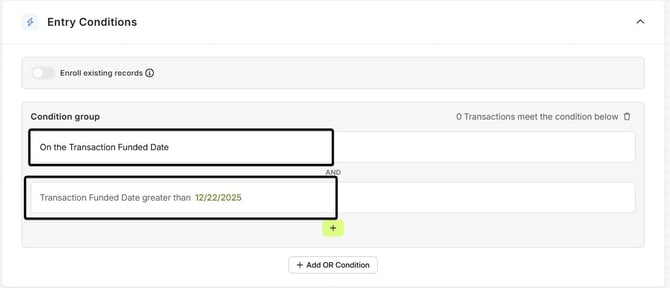
This ensures:
- The automation only runs on the intended calendar date
- Only recent or future transactions are eligible
- Older records are permanently excluded
Why the Cutoff Date Matters
The cutoff date changes the logic from:
Has this transaction ever been funded?
to:
Has this transaction been funded after a specific point in time?
Without the cutoff, the automation cannot tell the difference between a funded loan from years ago and a current one.
When to Use This Approach
You should apply this setup for automations such as:
- Funded milestone messages
- Anniversary or follow-up communications
- Holiday or seasonal automations
- Any automation using an “On the date” transaction condition
Summary
-
"On the date" conditions do not evaluate the year
-
Historical records can trigger automations if no cutoff is applied
-
This behavior is expected based on how date logic works
-
Adding a "greater than a specific date" condition is the correct and recommended solution
If you’re unsure whether an automation is configured safely, our support team can help review it with you.