
This guide will help you choose the right automation type, configure it correctly, and maximize your efficiency.
Automation Settings – Where It All Begins
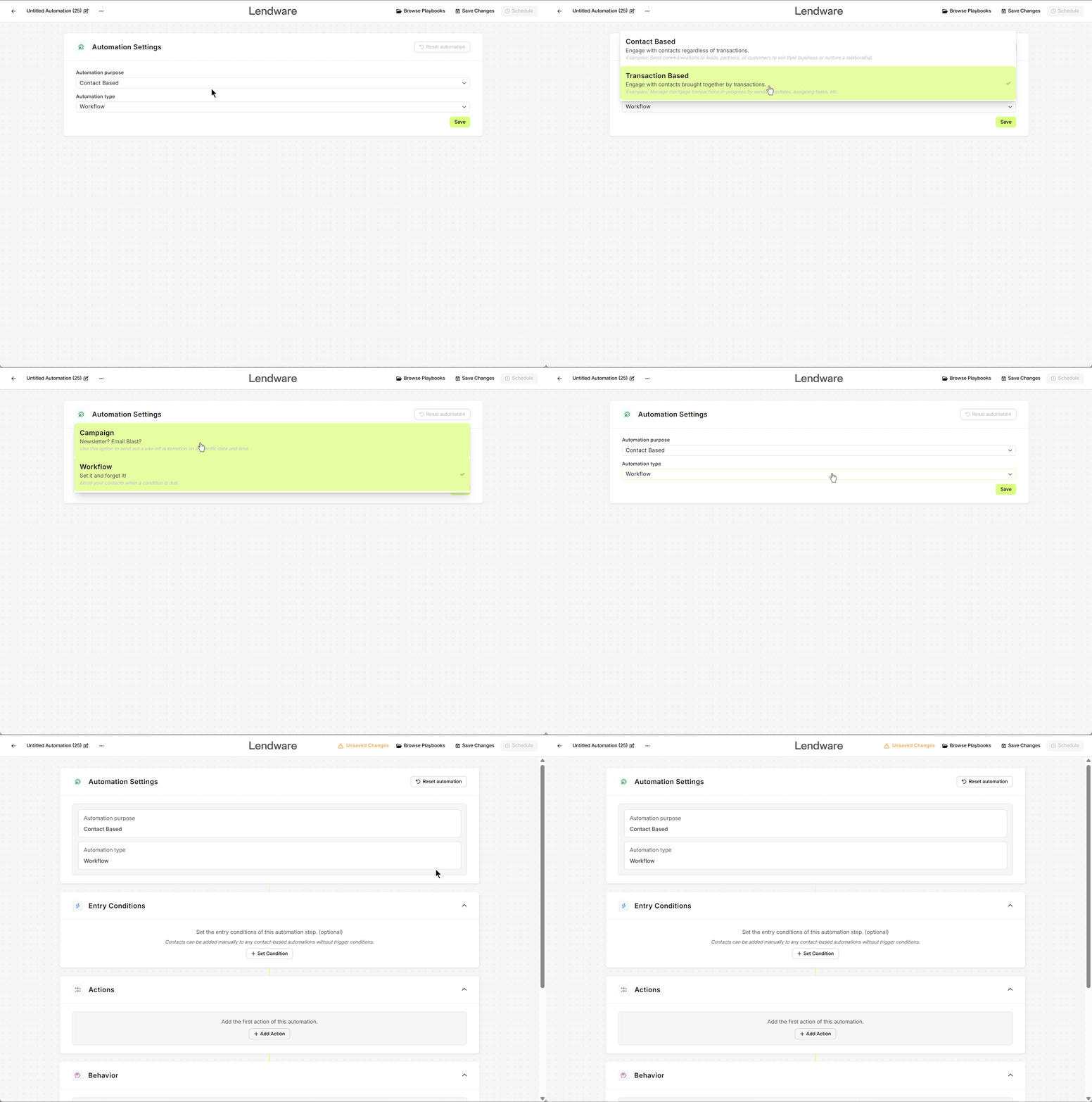
When creating a new automation, you first define:
-
Automation Purpose – Who or what is this automation for?
-
Contact-based → Engage people directly (leads, partners, past clients)
-
Transaction-based → Engage contacts tied to a specific transaction (borrowers, co-borrowers, agents)
-
-
Automation Type – How should it run?
-
Campaign → One-time, scheduled actions
-
Workflow → Multi-step, adaptive automation
-
💌 Campaigns – Your One-Time Blast Machine
Think of Campaigns as your big “send it and forget it” tool. Perfect for announcements, newsletters, or time-sensitive messages.
Scheduling
Campaigns run once at a scheduled date and time.
-
After they’ve run, they cannot be reactivated or edited.
-
You can review past campaigns for reference but not modify them.
-
Campaigns can be scheduled to run immediately (“now”) or at a specific future date and time.
Examples:
- Holiday greetings to past clients 🎄
- “New Rates Update” email blast 💰
- Event reminders or promotions 🎉
Available Actions:
| Type | Actions |
|---|---|
| Timers | Delay by Period, Delay until Day, Delay until Date |
| Communications | Send Email |
| In-App Actions (Contacts only) | Add to Automation(s), Apply Tags, Create Task, Update Status |
Note: SMS actions are not available in Campaigns for compliance and regulation purposes.
Behavior Notes:
- Entry conditions are required for every campaign.
- When a campaign is scheduled, all contacts that meet the entry conditions at that time are automatically included.
- You can add or adjust conditions and actions before the campaign runs, but not once it has completed.
- Once a campaign fires, it automatically deactivates.
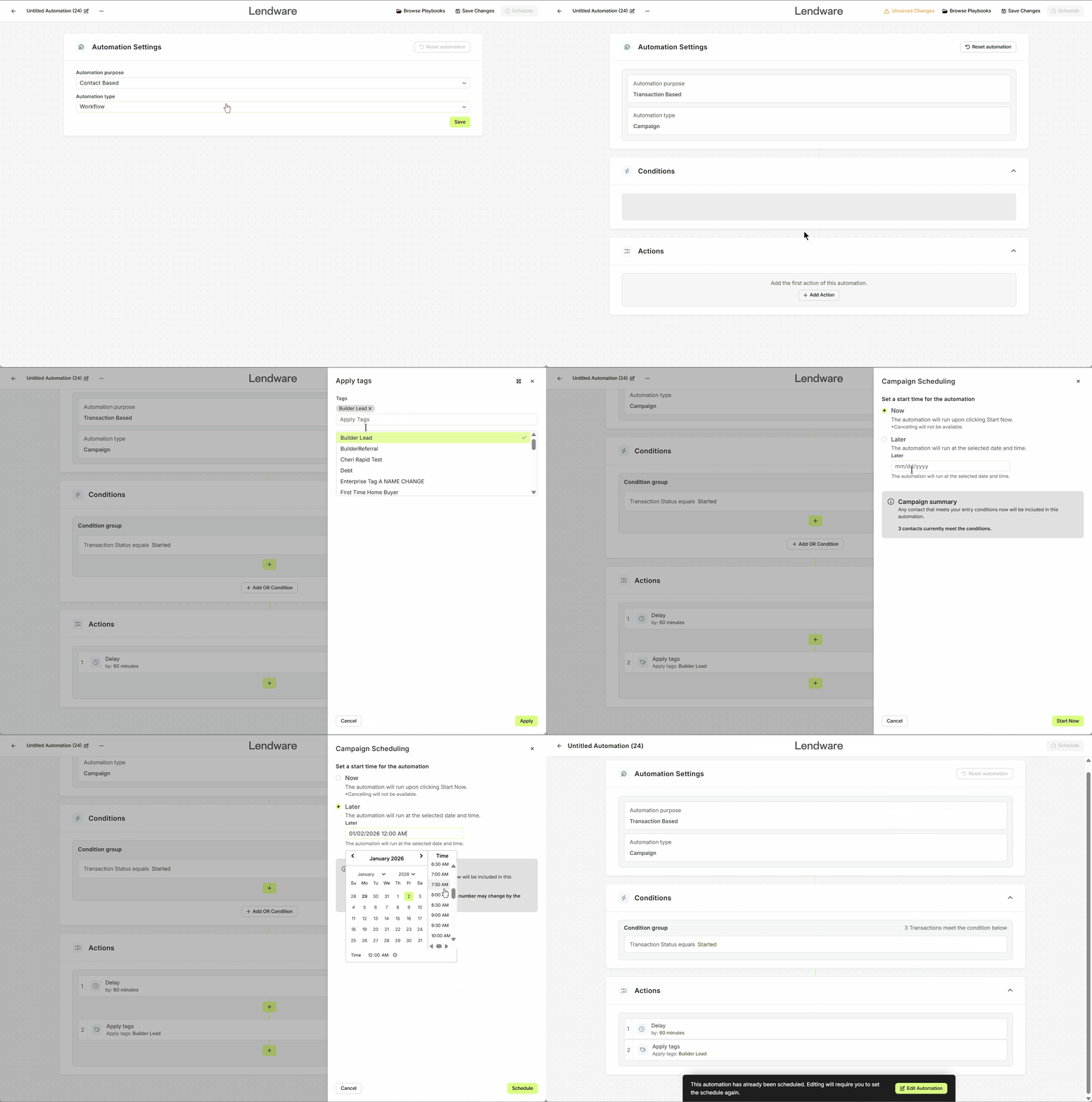
⚠️ Transaction Campaigns have all the same "In-app actions" except Add to Automation(s)
🔄 Workflows – Automate & Adapt
Workflows are designed for ongoing processes, with multiple steps, time delays, and flexible conditions. They’re perfect for managing long-term communication, lead nurturing, and transaction milestones.
Scheduling in Workflows
- Workflows stay active continuously after publishing.
- You can pause, edit, and re-enable them anytime.
-
Workflows only act on newly created or updated records after activation; they do not reprocess old ones unless manually re-enrolled.
Examples:
-
On new lead → wait 2 hours → send text → if no reply in 24 hours → send email
-
Loan funded → wait 7 days → prompt for review
Workflow Options:
| Feature | Description |
|---|---|
| Entry Conditions | Define how contacts/transactions enter (optional) |
| Actions | Timers, SMS, Email, Webhook, Agent Actions (User Input Notification), In-app actions (Apply Tags, Create Task, Update Status, Add to Automation for contacts) |
| Behavior | Stop on reply, Allowed communication times |
| Exit Conditions | Automatically remove contacts/transactions when criteria are met |
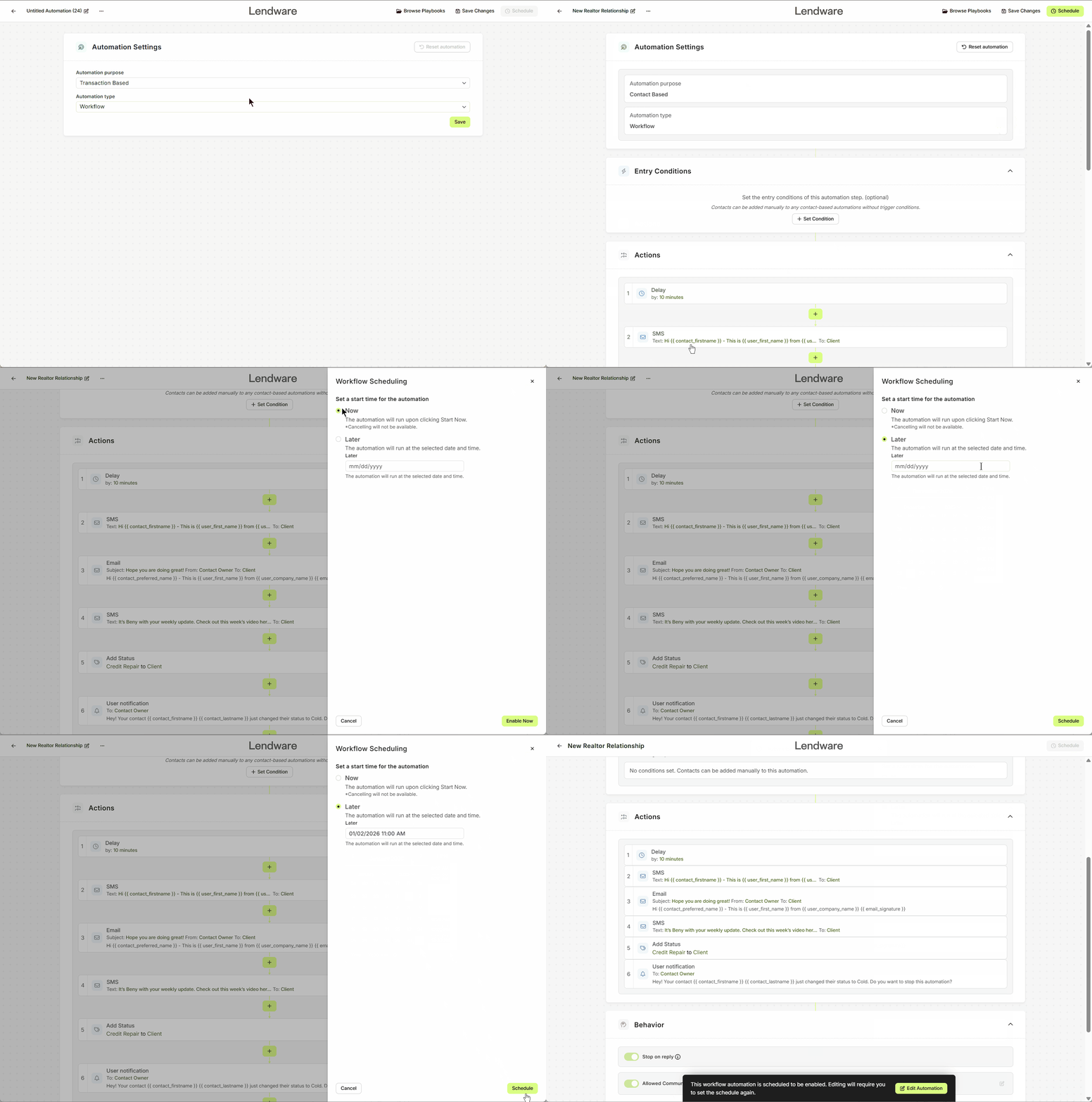
⚠️ Transaction Workflows include all "In-app actions" except Add to Automation(s)
📊 Campaign vs Workflow – Quick Comparison
| Feature / Option | Campaign | Workflow |
|---|---|---|
| Purpose | One-time blast (newsletter, email, scheduled communication) | Ongoing, adaptive, rule-based automation |
| Entry Conditions | ✅ Set conditions. (Required) | ✅ Set conditions (Optional); manual adds allowed |
| Exit Conditions | ❌ Not available | ✅ Automatically remove when criteria met |
| Behavior Controls | ❌ Not available | ✅ Stop on reply, allowed communication times |
| Timers | Delay by period, until day/time, until date | Same options |
| Communication Actions | Send Email | Send SMS, Email, Webhook |
| Agent Actions | ❌ Not available | ✅ User Input Notification |
| In-app Actions | Apply Tags, Create Task, Update Status, Add to Automation (Contacts only) | Apply Tags, Create Task, Update Status, Add to Automation (Contacts only) |
| Scope Options | Contact Campaign: leads, partners, customers Transaction Campaign: active transactions | Contact Workflow: nurture leads/partners ongoing Transaction Workflow: manage loans & contacts ongoing |
| Scheduling | One-time only; not editable post-run | Continuous; editable anytime |
| Use Cases | Newsletter, Email Blast, Event Reminder | Lead Nurturing, Transaction Management, Automated Follow-ups, Task Assignment |
💡 Key Takeaways
-
Campaign → One-off, scheduled blasts — great for newsletters or announcements.
-
Workflow → Continuous, adaptive automations — ideal for managing long-term engagement and transaction processes.
-
Contact vs Transaction → Determines who or what the automation acts on
Quick Guide
| Need to… | Use… |
|---|---|
| Send something once (newsletter, alert, promo)? | Campaign |
| Automate an ongoing process with timing or rules? | Workflow |
Pro Tips
-
After scheduling a Campaign, you’ll see:
“Any contact that meets your entry conditions now will be included in this automation. *** contact currently meets the conditions.”
or
"Any contact that meets your entry conditions now will be included in this automation. Currently, *** contacts meet the conditions. This number may change by the selected date and time."
-
Campaigns are similar to “Enroll Existing (Enabled)” behavior.
-
Workflows are similar to “Enroll Existing (Disabled)” behavior.
Need more help? Check out: How to Build a Newsletter Automation